

Follow a modern 3-2-1-1-0 approach: three copies of your data, on two different media, one offsite, one immutable or air-gapped, and zero errors confirmed through automated recovery testing. Design that plan from your systems’ recovery time objectives (RTO) and recovery point objectives (RPO), not from whatever storage you already own. A backup vendor’s feature list should never dictate how fast you need to recover or how much data you can afford to lose.
Start here, this week:
- Inventory every system and classify it by RTO/RPO tier (minutes, hours, or a full day)
- Add an immutable or offline copy if your current setup only has replicated or networked backups
- Automate backup jobs and their verification so a failed job triggers an alert, not a surprise during an actual outage
- Put restore tests on the calendar. Monthly for critical systems, quarterly for everything else
Pro Tip: If you can’t state your RTO and RPO for a system in one sentence, you haven’t classified it yet. “We back it up nightly” is not an RTO/RPO statement.
Most businesses that lose data to ransomware had backups. They just hadn’t verified those backups would actually restore, and the criminals encrypted the backups right alongside the production files.
Key Takeaways
A resilient data backup strategy starts with per-system RTO/RPO tiers, adds an immutable or air-gapped copy to the classic 3-2-1 model, and proves itself through regular, automated restore testing.
| Point | Details |
|---|---|
| Classify before you buy | Define RTO and RPO per system tier before selecting any backup technology or vendor. |
| Modernize 3-2-1 to 3-2-1-1-0 | Add one immutable or air-gapped copy plus automated verification to defend against ransomware. |
| Match technology to tier | Use CDP or image-based backups for Tier 1, incremental for Tier 2, nightly full backups for Tier 3. |
| Test restores on a schedule | Verify Tier 1 systems monthly and run a full disaster recovery test at least annually. |
| Separate compliance from backup mechanics | HIPAA, GDPR, and financial retention rules dictate access and retention, not the backup tool itself. |
| Mavericks Office Solutions runs it operationally | Documented RTO/RPO per client, 24/7 monitoring, and monthly restore verification backed by a sub-12-minute help desk response. |
Table of Contents
- What Is the Right RTO and RPO for Each System?
- Why the 3-2-1 Rule Needs an Update for Ransomware
- Which Backup Type and Architecture Fits Your Systems?
- What Do Cloud Backups Really Cost, and What Features Matter?
- How Do You Secure Backups Against Theft and Ransomware?
- How Do You Know Your Backups Actually Work?
- A 9-Step Checklist to Design or Audit Your Backup Strategy
- How Mavericks Office Solutions Runs Backups for Client Businesses
- What Is a Data Backup Strategy, and Why Does Every Business Need One?
- How Should You Back Up Databases, Files, VMs, and Applications?
- How Does Backup Strategy Fit Into Disaster Recovery and Business Continuity?
- What Compliance Rules Affect How You Back Up Data?
- What Actually Matters Once You Strip Away the Vendor Noise
- Mavericks Office Solutions Handles Backup Strategy So You Don’t Have To
- Sources
What Is the Right RTO and RPO for Each System?
Recovery time objective (RTO) is how long the business can survive without a system running. Recovery point objective (RPO) is how much data you can afford to lose, measured in time since the last good backup. Confusing the two is the single most common mistake in backup planning. A four-hour RTO with a 24-hour RPO means you’ll get the system back fast, but you might lose a full day of transactions. Every system in your environment needs both numbers defined, in writing, before you pick a technology.
Most SMB environments sort cleanly into three or four tiers. A practical breakdown, drawn from common tier-based mapping used across backup strategy guides, looks like this:
- Tier 1 (mission critical): ERP, primary databases, e-commerce platforms. Target RTO under one hour, RPO of minutes. Requires image-based backups, continuous data protection (CDP), or a BCDR appliance with local failover.
- Tier 2 (business important): file servers, internal apps, CRM. Target RTO of a few hours, RPO of one hour to a day. Hourly or daily incremental backups with block-level incremental (BLI) technology usually cover this tier.
- Tier 3 (standard): archives, historical records, low-traffic departmental data. Target RTO of a day or more, RPO of 24 hours. Nightly full or differential backups are adequate.
Once you know the tier, the technology choice mostly makes itself. A Tier 1 database can’t wait for a tape restore. A Tier 3 archive doesn’t need a $30,000 BCDR appliance sitting idle. Write the RTO, RPO, and chosen technology into a short service-level document per tier, not per server. That document becomes your reference the next time someone asks, “How fast can we get email back?” and the answer shouldn’t be a guess.
Why the 3-2-1 Rule Needs an Update for Ransomware
The classic 3-2-1 backup strategy has held up for decades: three copies of your data, on two different types of media, with one copy stored offsite. It protects against hardware failure, fire, and simple human error. It does not, by itself, protect against an attacker who has already compromised your network and can reach every connected backup target.
That gap is why best managed detection and response (MDR) services now recommend 3-2-1-1-0: the same three copies and two media types, plus one copy that is offline or immutable, and zero errors confirmed by automated recovery verification. The added “1” is the copy ransomware literally cannot reach because it’s air-gapped or locked by object-lock technology that prevents deletion or modification for a set retention window. The added “0” turns “we think our backups work” into “we know our backups work.”
- Immutable cloud storage (object-lock) satisfies the offline requirement without physical media handling
- True air-gapping (tape, removable drives, disconnected appliances) adds a layer that no network-based attack can touch
- CISA’s guidance on data backup options treats offsite and immutable storage as standard defenses against both ransomware and physical disasters, not optional extras
Immutability should be mandatory for Tier 1 and Tier 2 systems. For Tier 3 archival data with long retention windows, air-gapped or immutable storage is still recommended, but the urgency is lower since that data changes less often.
Pro Tip: Object-lock and “versioning enabled” are not the same thing. Versioning can still be deleted by an attacker with admin rights. True immutability locks the object for a defined retention period regardless of who holds the credentials.
Which Backup Type and Architecture Fits Your Systems?
Picking a backup type without reference to RTO/RPO is how businesses end up with technically working backups that still take three days to restore. Here’s how the main types compare:
- Full backups copy everything every time. Restores are fast and simple, but backup windows are long and storage costs climb quickly. Good as a periodic baseline, rarely practical as your only method.
- Incremental backups capture only changes since the last backup of any type. Backup windows shrink dramatically, but a full restore means reassembling the last full backup plus every incremental since, which slows recovery and adds risk if one increment is corrupted.
- Differential backups capture changes since the last full backup. Restores need only the full plus the latest differential, a middle ground between full and incremental on both speed and storage.
- Snapshots capture a point-in-time image of a volume or virtual machine almost instantly, useful for quick rollback but not a substitute for a backup stored on separate infrastructure.
- Continuous data protection (CDP) captures every write in near real time, driving RPO down to seconds. It’s the right tool for Tier 1 databases where losing even fifteen minutes of transactions is unacceptable, but it demands more storage and management overhead than periodic backups.
Architecture matters as much as backup type. An on-premises appliance replicating to the cloud gives you fast local restores plus offsite protection, a common fit for businesses with strict RTOs and unreliable internet. Cloud-first architectures skip the local hardware entirely and lean on providers for storage and, increasingly, compute during a disaster, which lowers capital costs but ties your recovery speed to your internet connection. A dedicated backup and disaster recovery (BCDR) appliance sits between the two, holding a local copy that can spin up as a temporary production server within minutes while a full recovery happens in the background. AWS’s prescriptive guidance on backup and recovery recommends cross-region and cross-account copies specifically so a compromised account can’t take down your entire backup estate at once.
Databases need their own logic layered on top of any architecture. Write-ahead logging (WAL) and point-in-time recovery (PITR) let you restore a database to the exact second before an error occurred, rather than rolling back to the last nightly snapshot and losing hours of transactions. If your Tier 1 systems run on SQL Server, PostgreSQL, or similar platforms, confirm your backup tool actually supports transaction log backups, not just full database dumps.
What Do Cloud Backups Really Cost, and What Features Matter?
Cloud backup pricing looks simple until the bill arrives with egress fees for the month you actually needed to restore data. Storage itself is often the smallest line item; retrieving large volumes of data during a disaster, or moving data between regions, is where costs spike unexpectedly.
- Lifecycle tiering moves older backups to cheaper cold storage automatically, cutting long-term retention costs without manual intervention
- Deduplication and compression reduce the volume of data actually stored, often by a meaningful margin for file-heavy workloads with repeated content
- Egress fees apply when pulling data out of a cloud environment, so model a full-restore scenario, not just steady-state storage costs, before you commit to a provider
AWS’s guidance notes that careful cost modeling for long-term retention matters because lifecycle tiering and deduplication cut costs but also slow down restores from cold storage tiers, a trade-off worth discussing with whoever owns the budget before, not during, an incident.
When evaluating a provider, four features should be non-negotiable: immutability or object-lock support, cross-region replication, audit logging that shows who accessed or modified backup data, and lifecycle policies you can configure without a support ticket. SaaS platforms deserve a separate conversation. Microsoft 365 and Google Workspace retain deleted items for a limited window, but neither vendor treats long-term backup as their responsibility. Microsoft’s own documentation on backing up and transferring data makes clear that data protection responsibility sits with the customer, which is why third-party backup tools for Microsoft 365 tenant data exist as a distinct product category rather than a checkbox inside the subscription.
How Do You Secure Backups Against Theft and Ransomware?
A backup that isn’t encrypted or access-controlled is just a second copy of the problem waiting for the same attacker to find it. Encryption in transit protects data as it moves between your systems and storage; encryption at rest protects it once it lands. Both should be standard, and key management deserves real attention: if the encryption keys sit in the same environment as the backups, an attacker who compromises one compromises both.
Immutability and air-gapping solve different problems and work best combined. Immutability, enforced through object-lock policies, stops anyone (including a compromised admin account) from deleting or altering a backup during its retention window. Air-gapping goes further by physically or logically disconnecting a copy from the network entirely, which defeats even an attacker with legitimate-looking credentials.
- Use dedicated backup credentials, never the same domain admin account used for daily IT work
- Require multi-factor authentication (MFA) on every account with access to backup consoles or storage
- Separate the role that manages backups from the role that manages production systems, so one compromised account can’t touch both
- Scan backups for malware before restoring them, so you don’t reintroduce the same infection you’re recovering from
That last point trips up more recoveries than people expect. Restoring last week’s backup without scanning it first can put the same ransomware payload right back into a freshly rebuilt environment, on a loop that resets the clock without solving anything. Coordinate credential hygiene here with your broader password management practices, since backup consoles are a favorite target once an attacker is inside your network.
Pro Tip: Test your air-gapped or immutable copy by trying to delete it (in a test environment, not production). If it deletes, it isn’t actually immutable, and you just found out the safe way instead of during an incident.
How Do You Know Your Backups Actually Work?
A backup job that “completed successfully” tells you almost nothing about whether the data inside it can be restored. Automated verification closes that gap, and it needs to happen at three levels: the job itself, the data integrity, and the actual bootability of what you’d be restoring.
- Automate every backup job with heartbeat checks that alert someone immediately when a job fails or runs long, rather than waiting for a scheduled report to surface the problem days later.
- Set a success-rate service level for your backup environment. Anything short of consistent, near-universal completion across jobs deserves investigation, not a shrug.
- Run automated boot or instance verification after backups complete, especially for Tier 1 and Tier 2 virtual machines, confirming the backup actually powers on rather than just exists as a file.
- Schedule a full disaster recovery test at least annually, involving a real failover to backup infrastructure, not a tabletop discussion about what would happen.
- Build a dashboard or client report that shows backup coverage across every system, last verified restore date, and any outstanding failures, so gaps surface before an emergency, not during one.
TechTarget’s best practices for modern backup strategy put restore testing and immutability at the center of a resilient approach, alongside increasing backup frequency to match how fast your business actually generates critical data. US-CERT’s guidance on backup options makes the same point from a security angle: a backup you haven’t tested is a hypothesis, not a plan.
A 9-Step Checklist to Design or Audit Your Backup Strategy
Whether you’re building a backup strategy from scratch or auditing what’s already running, work through these steps in order:
- Inventory every system, including shadow IT and departmental servers nobody officially owns.
- Classify each system by RTO/RPO tier, documenting the numbers, not just a gut-feel priority label.
- Select technology per tier: CDP or image-based backups for Tier 1, block-level incremental for Tier 2, nightly full or differential for Tier 3.
- Deploy at least one immutable or air-gapped copy, prioritizing Tier 1 and Tier 2 systems first if budget forces a phased rollout.
- Automate backup jobs and alerting, so failures generate a ticket automatically rather than depending on someone checking a log.
- Test restores on a fixed schedule, monthly for Tier 1, quarterly for Tier 2 and Tier 3.
- Document runbooks that specify who initiates a restore, in what order systems come back online, and who has authority to declare a disaster.
- Set a retention policy per data type, balancing compliance requirements against storage cost, and archive anything past its active-use window to cheaper cold storage.
- Review and report monthly, tracking coverage percentage, verified restore dates, and any open failures for whoever owns the budget decision.
A small business with under fifty employees can usually complete steps one through five within a month using existing IT staff. A mid-sized environment with multiple locations or regulatory obligations often needs a dedicated project timeline of two to three months, particularly if legacy systems require new backup agents. Larger, multi-site organizations should expect a phased rollout across a quarter or more, tier by tier, starting with whatever system would hurt the business most if it went dark tomorrow.
How Mavericks Office Solutions Runs Backups for Client Businesses
Mavericks Office Solutions builds backup strategy the same way this article describes it: RTO/RPO documented per client system, immutable or offsite copies as a baseline rather than an upsell, and monthly restore testing instead of an annual checkbox exercise.
“A backup you haven’t tested is a guess dressed up as a plan.” That’s the operating principle behind every client engagement: 24/7 monitoring catches failed jobs the moment they happen, and a local, USA-based help desk with an average response time under 12 minutes means a restore request doesn’t sit in a queue while the business waits.
- Documented RTO/RPO per client, reviewed as systems and priorities change
- Automated monitoring and reporting that flags failed jobs before they become a crisis
- Monthly restore verification for critical systems, not just an annual disaster recovery drill
What Is a Data Backup Strategy, and Why Does Every Business Need One?
A data backup strategy is the documented plan for how a business copies, stores, protects, and restores its critical data, covering what gets backed up, how often, where copies live, and how recovery gets verified. It’s distinct from simply “having backups,” which describes a technical state, not a plan. A strategy assigns ownership, sets recovery targets, and defines what happens when something goes wrong.
Businesses need one because data loss rarely announces itself in advance. Hardware fails without warning, ransomware encrypts files in minutes, and human error deletes the wrong folder on an ordinary Tuesday. Without a strategy, recovery becomes improvisation: someone scrambling to figure out which backup is current, whether it actually restores, and how long the business can survive without the system in question.
The businesses that recover fastest from a serious incident aren’t the ones with the most expensive storage. They’re the ones who answered the hard questions in advance: what’s the RTO for this system, who has authority to initiate a restore, and when was this backup last verified to actually work. A data backup strategy for small business doesn’t need enterprise complexity, but it does need those same three questions answered for every system that matters.
How Should You Back Up Databases, Files, VMs, and Applications?
Different data types fail differently, and a one-size-backup approach almost always leaves gaps somewhere in the mix.
Databases need transaction-level protection, not just periodic snapshots. Write-ahead logging and point-in-time recovery let you roll back to the exact moment before corruption occurred, which matters enormously for transactional systems like order processing or financial records where losing even an hour of data has real cost.

File servers are comparatively simple, but volume creates its own challenge. Incremental backups keep windows manageable, and versioning helps recover from accidental deletion or overwrite, though versioning alone doesn’t protect against an attacker with admin access, which is why immutability still matters here too.
Virtual machines benefit from image-based backups that capture the entire machine state, operating system, applications, and data together, allowing a full VM to spin back up rather than requiring a rebuild from separate components. This is where BCDR appliances earn their cost for Tier 1 workloads, since spinning up a failed VM from a local appliance image takes minutes instead of hours.
Applications, particularly custom or legacy ones, often depend on configuration files and environment settings that live outside the obvious data directory. Document those dependencies explicitly in your runbook, because an application backup that captures the database but misses a configuration file can leave a system technically “restored” but functionally broken.
How Does Backup Strategy Fit Into Disaster Recovery and Business Continuity?
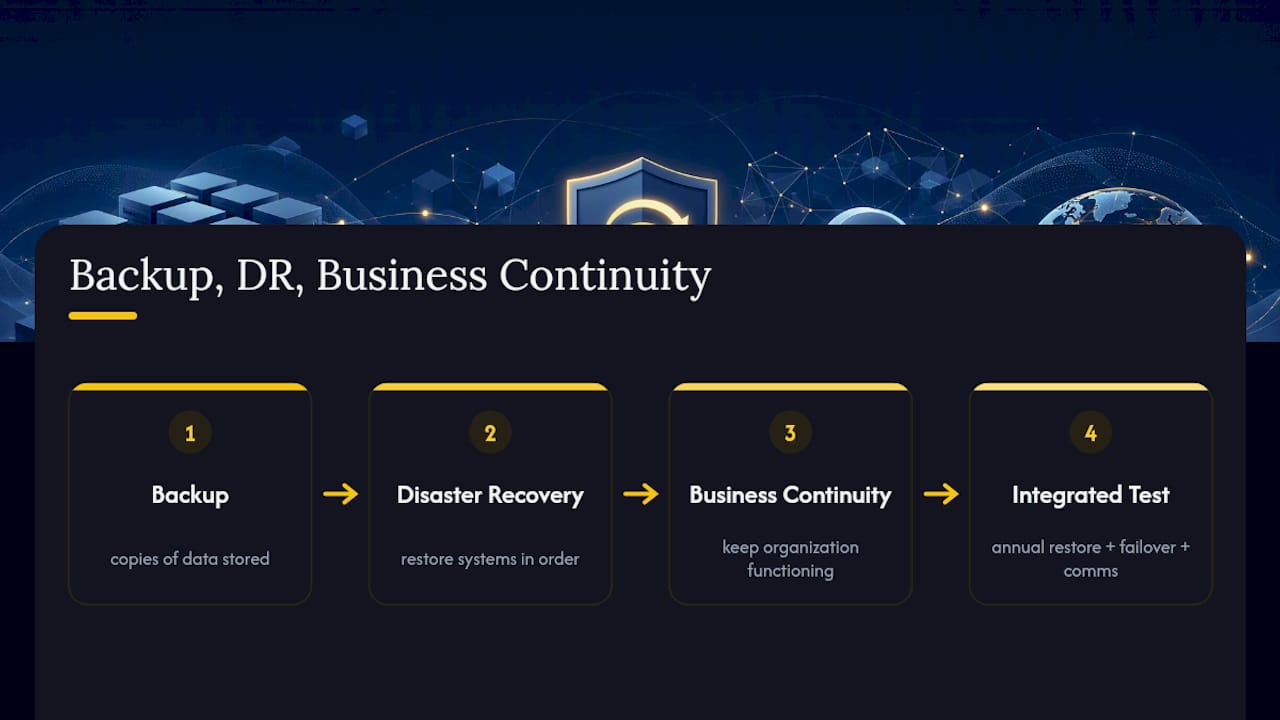
Backup and disaster recovery get used interchangeably, and that confusion causes real problems. Backup is the mechanism: copies of data, stored and protected. Disaster recovery is the process: how systems come back online, in what order, and how the business operates while that happens. A data backup strategy versus disaster recovery framing helps clarify that backups are a necessary input to DR, not a substitute for it.
A business continuity plan sits one level above disaster recovery, covering how the organization keeps functioning, not just how systems get restored. If your primary office loses power for two days, DR handles bringing systems back online at a secondary location; business continuity handles where employees work, how customers get served, and who communicates what to whom during that window.
The integration point that most plans miss is testing all three together. A backup that restores perfectly in isolation doesn’t guarantee the DR runbook accounts for network dependencies, or that the business continuity plan has accounted for how long the DR process actually takes. Run a combined test at least annually: restore from backup, execute the DR failover, and confirm the business continuity communication plan actually triggers on schedule. Treating these as three separate documents that never get tested together is how businesses discover gaps at the worst possible time.
What Compliance Rules Affect How You Back Up Data?
Regulatory requirements shape backup strategy in ways that go beyond “back up more often.” Different frameworks impose different, sometimes conflicting, obligations around retention, location, and access.
HIPAA requires covered entities and business associates handling protected health information to maintain retrievable backup copies as part of the broader security rule, with specific attention to who can access that data and how long it’s retained. GDPR, which applies to the personal data of individuals in the European Union regardless of where the processing business is located, imposes both a right to have data available (supporting backup and recovery) and a right to erasure, which creates real tension when backups are immutable by design. If an immutable backup can’t be modified for its retention period, a business subject to GDPR needs a documented policy for handling erasure requests against systems that aren’t yet due for backup rotation.
Industries handling financial data face their own retention mandates that specify minimum retention periods, sometimes measured in years, which directly shapes archival strategy and storage tiering decisions. None of these frameworks tell you which backup technology to use. They do dictate how long certain data must remain recoverable and how tightly access must be controlled, which is exactly why the access-separation and audit-logging practices covered earlier aren’t optional extras for regulated businesses. When in doubt about a specific compliance obligation, that’s a conversation for legal counsel or a compliance specialist, not a backup vendor’s marketing page.
What Actually Matters Once You Strip Away the Vendor Noise
Most backup advice still treats 3-2-1 as gospel, and that’s the first thing worth pushing back on. The rule was built for hardware failure and natural disaster, not for an adversary who’s already inside your network deciding which files to encrypt last. Treating 3-2-1 as sufficient in 2026 is a little like locking your front door and assuming that handles home security. It handles one threat, not the one most likely to actually hurt you.
The bigger blind spot isn’t technology, though. It’s verification. Plenty of businesses have immutable copies, offsite replication, and every checkbox filled, and still discover during an actual incident that a restore takes eleven hours instead of the one hour leadership assumed. RTO and RPO only matter if someone tested them under realistic conditions, not just confirmed the backup job completed.
If you take one thing from this, prioritize the restore test over the backup tool. A mediocre backup tool with monthly verified restores beats a premium platform nobody has actually tried to recover from.
— Jeffrey
Mavericks Office Solutions Handles Backup Strategy So You Don’t Have To
Designing RTO/RPO tiers, deploying immutable storage, and running monthly restore tests is a lot to manage alongside everything else on an IT team’s plate, and skipping any one of those steps is exactly how businesses discover gaps during a real crisis. Mavericks Office Solutions builds and manages this entire process as part of its managed IT services, covering backup design, 24/7 monitoring, and documented restore verification without requiring a full-time backup administrator on staff.

That means your systems get classified by tier, your backups get an immutable or offsite copy as standard practice, and someone actually checks whether restores work before you ever need one in an emergency. Pair that with Mavericks Office Solutions’s cybersecurity services for the access controls and monitoring that keep ransomware from reaching your backups in the first place. If your current backup setup hasn’t been tested with a real restore in the last quarter, that’s the gap to close first. Reach out to Mavericks Office Solutions for a review of your current backup coverage and a plan built around your actual recovery targets, not a generic template.
Sources
- CISA: Data backup options
- US-CERT: Data backup options
- AWS: Backup and recovery prescriptive guidance
- Backblaze: The 3-2-1 backup strategy of data protection
Recommended
- Microsoft 365 Backup: What Ohio SMBs Need to Know – Mavericks Office Solutions
- Why Every Ohio Small Business Needs a Cybersecurity Plan in 2026 – Mavericks Office Solutions
- Best Business Password Manager for SMBs: 2026 Guide – Mavericks Office Solutions
- Data Loss Prevention for SMBs: A Practical Checklist – Mavericks Office Solutions