

Passwordless authentication lets people sign in without typing a password. Instead, they prove who they are with something they have, such as a phone, laptop or security key, or something they are, such as a fingerprint or face scan. The ITU describes it as verifying identity without relying on shared secrets. For a small business, that matters because shared secrets, meaning passwords, are what phishing kits and credential-stuffing tools are built to steal.
This guide explains how passwordless sign-in works, how it differs from MFA, where it can go wrong, and how a business with 10 to 200 employees can move to it without locking people out.
TL;DR
- Passwordless sign-in replaces the password with a device-bound cryptographic key, a biometric or a hardware key. There is no shared secret to phish or reuse.
- It is not the opposite of MFA. A passkey on a phone you unlock with a fingerprint already combines a device and a biometric or PIN.
- The biggest risks are lost devices, weak recovery processes and leaving a password fallback switched on.
- Start with Microsoft 365 or your main identity provider, enroll admins first, and keep a documented recovery path before you remove passwords.
Table of Contents
- What passwordless authentication actually means
- How passkeys and FIDO2 work in plain terms
- Passwordless vs. MFA: how they relate
- Is passwordless more secure?
- The real disadvantages and risks
- Which method fits which person
- A six-step rollout for a small business
- Passwordless in Microsoft 365 environments
- Our perspective
- Getting help with passwordless rollout
- FAQ
- Sources
What passwordless authentication actually means
A password is a shared secret. You know it, the service stores a version of it, and anyone who learns it can pretend to be you. Passwordless methods remove that secret from the login.
The ITU’s 2024 recommendation on password and passwordless solutions lists the alternatives: biometrics, public-key cryptography and registered devices. TechTarget’s definition adds that passwordless systems use possession or inherence factors, meaning something you hold or something you are, rather than something you remember.
In practice, “passwordless” is a family of methods, not a single product. The ones you will meet most often:
- Passkeys. A passkey is a FIDO credential tied to your account on a site or app. According to the FIDO Alliance, you approve sign-in the same way you unlock your device: biometrics, PIN or pattern.
- Hardware security keys. A small USB or NFC device you tap or insert. Good for administrators and shared workstations.
- Platform biometrics. Windows Hello, Face ID or Touch ID, unlocking a key stored on the device.
- Authenticator app approvals. A push or number-matching prompt on a registered phone.
- Magic links and one-time codes. Convenient, but the weakest of the group. TechTarget notes that email codes are only as safe as the email account, and SMS codes can be intercepted or stolen.
That last point is worth remembering. Not everything sold as passwordless is equally strong. The methods built on public-key cryptography are the ones that resist phishing.
How passkeys and FIDO2 work in plain terms
When you register a passkey, your device creates a pair of cryptographic keys. The public key goes to the service. The private key stays on your device, protected by your biometric or PIN. At sign-in, the service sends a challenge, your device signs it with the private key, and the service checks the signature with the public key.
Two things follow from that design:
- Nothing reusable crosses the network. There is no password to intercept, and a breach of the service exposes only public keys.
- The key is bound to the real website. The federal Phishing-Resistant Authenticator Playbook explains that FIDO-based authentication is designed to prevent authentication secrets from being disclosed to an impersonating website or application. A convincing fake login page gets nothing.
The same playbook notes that passkeys can be synced across a user’s devices, which makes them far easier to live with than a single hardware token. It also says the Federal Zero Trust Strategy permits FIDO2 and Web Authentication as alternative phishing-resistant authenticators and encourages wider use of passwordless technology. When federal agencies are being pointed this way, small businesses that hold customer or financial data have good reason to pay attention.
Passwordless vs. MFA: how they relate
People often ask whether passwordless is safer than MFA, as if you must pick one. The two ideas sit on different axes.
- MFA is about combining factors from different categories, such as a password plus a code. The ITU draws this distinction: MFA combines categories, while passwordless removes reliance on shared secrets.
- Passwordless is about eliminating the password. A well-built passwordless sign-in can still be multi-factor: the device is something you have, and the biometric or PIN that unlocks it is something you are or know.
So the useful comparison is not “passwordless or MFA” but “which kind of MFA.” A password plus an SMS code is MFA, yet it can be phished or intercepted. CISA’s guidance on mobile communications urges highly targeted individuals to move away from SMS-based MFA because it is not phishing-resistant, and to use FIDO authentication instead.
| Password + SMS code | Password + authenticator app | Passkey or security key | |
|---|---|---|---|
| Password to steal | Yes | Yes | No |
| Phishing-resistant | No | Limited | Yes |
| User effort at sign-in | High | Medium | Low |
| Main weakness | Code interception, SIM swaps | Prompt fatigue, fake login pages | Lost device, weak recovery |
If you already run MFA, you are not starting over. Our practical MFA implementation guide for SMBs covers the baseline, and the Microsoft 365 MFA setup checklist walks through enrollment and recovery. Passwordless is the next step up from a solid MFA program, not a replacement for having one.
Attackers have also adapted to weaker MFA. If your users approve push prompts without thinking, read our piece on MFA fatigue attacks and why number matching is not enough.
Is passwordless more secure?
For most common attacks, yes. Microsoft’s overview explains that passwordless methods typically tie sign-in to a trusted device, a biometric check or a hardware key, so stolen credentials are far less useful in typical phishing scenarios. The FIDO Alliance describes passkeys as phishing-resistant and always strong, unlike passwords people choose themselves.
What it removes:
- Credential stuffing, where attackers try leaked passwords across many services.
- Password reuse across work and personal accounts.
- Fake login pages that capture a password and a code in real time.
- Help desk time spent on password resets.
What it does not remove:
- Malware already running on an unlocked device.
- Social engineering of your help desk or recovery process.
- Over-permissioned accounts. A phishing-resistant login on an admin account with too many rights is still a big target.
Passwordless narrows the attack surface. It does not make an account unattackable.
The real disadvantages and risks
Any honest guide has to cover what can go wrong. Okta’s identity guide names the main drawbacks: the expertise and training required, difficulty blocking access when a device is lost or stolen, and the way a password fallback can undermine the whole setup.
Lost, stolen or replaced devices
If a passkey lives on one phone and that phone goes in a lake, the employee is locked out. Synced passkeys and a second registered authenticator reduce this. Registering two methods per person, for example a phone and a security key kept in a safe, is a simple rule that prevents most emergencies.
Password fallback
If you keep passwords active “just in case,” attackers will target the password path. Plan to disable password sign-in for an account once passwordless is proven for that user, or at least restrict it to a tightly controlled break-glass account.
Account recovery
Recovery is where attackers go when the front door is strong. The OWASP Multifactor Authentication Cheat Sheet treats MFA reset as a high-risk action: done poorly, it lets attackers bypass the control, so it should require reauthentication with existing factors and out-of-band notification to the user.
For a compromised device, CISA’s countermeasure guidance calls for unenrolling it, rotating credentials and enrolling a new device promptly. Build that sequence into a written runbook before you need it.

Legacy applications
Older line-of-business software, shared mailboxes, scanners and some printers may not support modern sign-in. Inventory them first. Some will need a service account, an upgrade or a gateway.
Which method fits which person
You do not need one method for everyone. Microsoft notes that organizations can support several options, such as hardware security keys for privileged roles and biometric sign-in for general employees, to balance security and usability. A sensible small-business split looks like this:
| Role | Suggested method | Backup method |
|---|---|---|
| Owners, IT admins, finance | Hardware security key | Second key stored securely |
| Office staff on company laptops | Windows Hello or passkey on the device | Authenticator app on the phone |
| Field staff on phones | Passkey with phone biometrics | Hardware key kept at the office |
| Shared kiosks and front-desk PCs | Hardware key or tightly scoped shared-device sign-in | Supervisor-assisted reset |
Avoid making SMS or email codes your main method. Keep them, if at all, as a last resort for low-risk accounts.
A six-step rollout for a small business
This is a practical order of operations. Our deeper guide on NIST-aligned phishing-resistant authentication for SMB IT goes further into each step.
- Inventory accounts and apps. List every system that holds sensitive data: email, accounting, payroll, CRM, remote access, cloud storage, and the admin consoles for each. Mark which ones support passkeys or FIDO2.
- Fix the foundation first. Turn on MFA everywhere, and retire SMS where you can. If you still depend on passwords for some systems, put them in a business password manager and set a sensible password policy until those apps can be moved.
- Pilot with administrators. Enroll IT admins and owners on hardware keys first. They hold the most power and tolerate a rough edge or two.
- Write the recovery process. Decide who can approve a reset, how identity is verified (not by email alone), and how the user is notified. Follow the OWASP principle of out-of-band notification.
- Roll out in waves. Move one department at a time. Train people on what a sign-in prompt should look like and what to do when a new device arrives.
- Remove the fallback. Once a user is reliably on passkeys or keys, disable password sign-in for that account, then review sign-in logs monthly.
Personal accounts matter too, since staff reuse habits across both. Our guide to preventing account takeover with passkeys and app audits is a good handout for employees.
Passwordless in Microsoft 365 environments
Most Ohio and Michigan small businesses we work with run on Microsoft 365, which is why it is the natural starting point. Microsoft’s identity platform supports several passwordless options, including Windows Hello, authenticator app sign-in and FIDO2 security keys, as described on its passwordless authentication page. Because those options can be enabled by policy and targeted at groups, you can pilot with a small set of users before widening the rollout.
Pay attention to licensing and to conditional access rules, which decide where and on what devices a passwordless sign-in is accepted. If you want help sorting that out, our Microsoft 365 services cover setup, security configuration and ongoing administration.
Our perspective
We run an outsourced IT department for small and mid-sized businesses in Ohio and Michigan, and the pattern we see is consistent: the password is rarely the only weak point, but it is the cheapest one for an attacker to exploit. When we talk with owners about passwordless, the hesitation is almost never “is it secure?” It is “what happens when someone’s phone breaks on a Friday afternoon?”
That is the right question, and it is why we treat recovery as part of the design, not an afterthought. The goal is not to make sign-in clever. It is to make the secure path the easy path, and to have a person who answers quickly when something goes wrong. That is the reason our help desk is 100% USA-based and local to Ohio, with an average response under 12 minutes. A strong login control still needs a human who can verify identity and restore access without opening a hole.
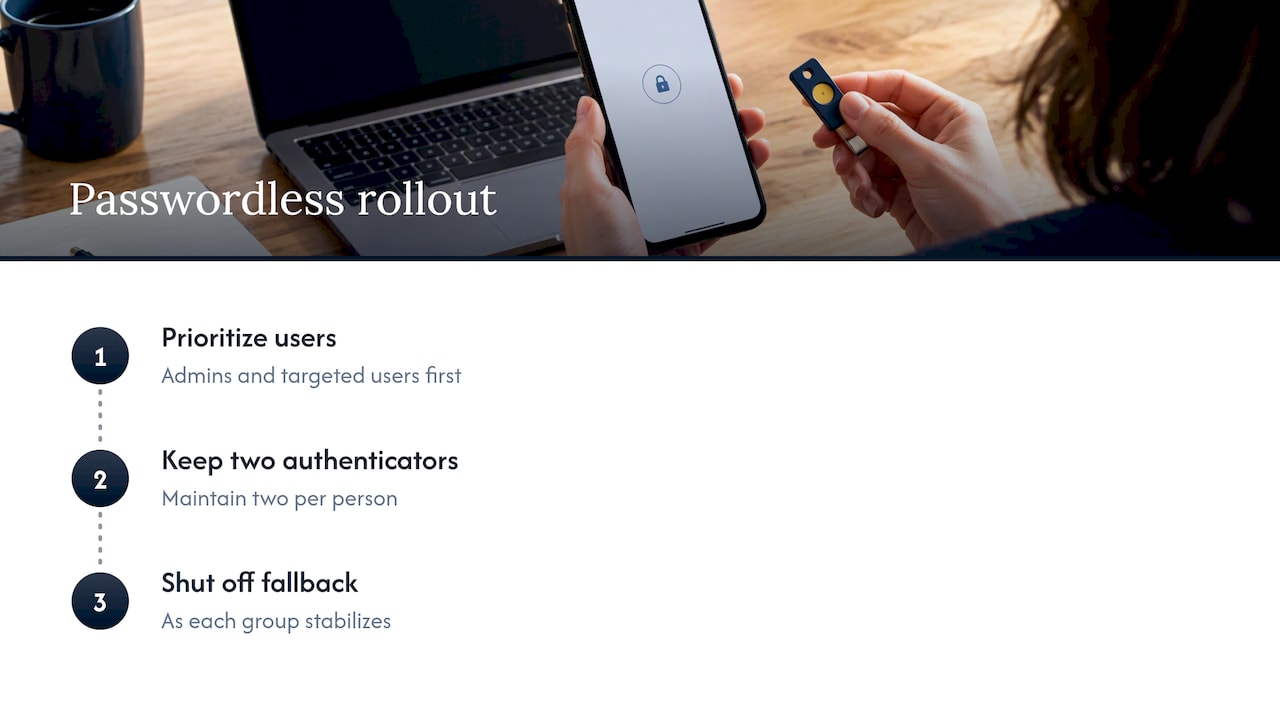
Our advice: do not wait for a perfect, all-passwordless environment. Move admins and your most targeted users first, keep two authenticators per person, and shut off the fallback as each group stabilizes. Progress beats perfection.
— Jeffrey
Getting help with passwordless rollout
If you do not have an IT lead to plan the enrollment, recovery runbook and legacy-app cleanup, that is the kind of work our managed IT services and cybersecurity services are built for. We handle the monitoring and support around identity, so your team signs in faster and your owners are not the ones doing the troubleshooting.

If you want a second opinion on where your accounts stand today, our team can review your current MFA setup and recommend the shortest safe path to passkeys. For a wider look at where identity fits in your overall risk picture, see our small business cybersecurity playbook for Michigan owners and the Ohio cybersecurity plan guide.
FAQ
What is passwordless authentication?
It is a way of verifying identity without a password. Instead of a memorized secret, the system relies on a registered device, a biometric or a hardware key, often using public-key cryptography. Passkeys are the most widely supported form today.
Is passwordless safer than 2FA?
Passkeys and hardware keys are safer than most common two-factor setups, because they resist phishing and have no code to intercept. Two-factor methods that rely on SMS or approval prompts can still be tricked. The strongest approach is phishing-resistant sign-in with a well-protected recovery process.
What are the disadvantages of passwordless authentication?
The main ones are lost or stolen devices, the training and planning required, and weak account recovery. Leaving a password fallback active can also undercut the benefit. Registering a second authenticator per user and writing a recovery runbook address most of these.
Which technology is commonly used in passwordless authentication?
FIDO2 and WebAuthn, which power passkeys and hardware security keys, are the most common standards. Biometric unlocking such as Windows Hello and authenticator app approvals are also widely used. Magic links and one-time codes exist too, but they are less secure.
Does passwordless replace MFA?
Not exactly. A passkey that needs a biometric or PIN to unlock already covers more than one factor. You still need MFA policies for systems that do not support passkeys, and you still need strong recovery controls.
Sources
- ITU-T X.1283: Threat analysis and guidelines for securing password and passwordless authentication solutions
- TechTarget: What is passwordless authentication?
- FIDO Alliance: Passkeys
- IDManagement.gov: Phishing-Resistant Authenticator Playbook
- CISA: Mobile Communications Best Practice Guidance
- Microsoft Security: Passwordless authentication
- Okta: What is passwordless authentication and how does it work?
- OWASP: Multifactor Authentication Cheat Sheet
- CISA: Eviction strategies countermeasure on compromised MFA devices