

Document capture automation turns paper and digital files, such as invoices, forms and contracts, into organized, searchable data without someone retyping it. Scanners, email inboxes and uploads feed the documents in. Software reads and sorts them, checks the data, and sends it to your accounting, ERP or filing system. For a small business, the payoff is fewer typing errors, faster approvals and files you can find. The risk is that the digital copies need real protection.
This guide explains how the process works, what it costs, where first projects go wrong and how to start small.
TL;DR
- Capture automation has five layers: ingestion, pre-processing, OCR extraction, validation and write-back to your business system. Skipping one is the most common reason projects fail.
- Intelligent document processing (IDP) adds machine learning to OCR so software can classify documents and read varied layouts.
- Start with one high-volume document type, usually invoices, and measure time per document and error rate before and after.
- Scan at 300 DPI, split batches by document, and lock down access to the results.
- Plan for security from day one: backups, role-based access and regular access-log reviews.
Table of Contents
- What document capture automation does
- The five layers of a capture pipeline
- What it saves: speed and fewer errors
- What it costs
- Where first projects go wrong
- Securing what you capture
- Our perspective
- A six-step pilot you can run this quarter
- How we can help
- FAQ
- Sources
What document capture automation does
Manual capture means a person opens a document, reads it, types the numbers into another system and files the original. Automated capture replaces the typing and filing, and leaves people to handle exceptions.
The terms overlap, so here is how they differ:
- Document capture moves a paper or digital document into an electronic system.
- OCR (optical character recognition) converts the image of text into machine-readable text.
- Intelligent document processing is the broader category. AWS describes IDP as automating the move of data from paper-based documents or images into digital form for use in other business processes.
- Document workflow automation is what happens after capture: routing, approvals, reminders and posting.
For a ten-to-two-hundred-person company, the practical question is rarely which acronym to buy. It is which paper-heavy process costs you the most hours.
The five layers of a capture pipeline
A production-grade OCR pipeline is described as having five distinct layers: ingestion, pre-processing, OCR extraction, parsing and validation, and write-back to the target system. The same guide warns that first projects often collapse these into a single step, which leads to poor accuracy and error queues nobody can manage.

1. Ingestion
This is where documents enter: a scanner or copier, a shared mailbox, a portal upload or a mobile photo. Decide on a small number of entry points. Every extra channel is another place for documents to arrive in a different format.
One failure to avoid here: batch scanning without splitting by document. If a multi-page PDF is not separated at document boundaries, data from different records gets interleaved, and the OCR output is close to impossible to clean up later.
2. Pre-processing
Images are straightened, cleaned and checked for quality. Resolution matters most. Accuracy drops sharply below 150 DPI, and 300 DPI is the practical minimum for reliable automation. Set your scanners and copiers to 300 DPI as a default and save yourself a lot of rework.
3. OCR extraction and classification
Software reads the text and, in an intelligent system, identifies the document type. This is the automated sorting step: an invoice goes to accounts payable, a signed contract goes to the contracts folder, a W-9 goes to vendor onboarding. Classification works best when you have a short, agreed list of document types rather than dozens of loosely defined ones.
4. Parsing and validation
Extracted text becomes fields: vendor name, invoice number, date, total. Validation rules then check them. Does the total equal the sum of the line items? Does the vendor exist in your system? Is the purchase order number valid? Anything that fails goes to a person. This layer is where accuracy is earned.
5. Write-back
The clean data lands in your accounting platform, ERP, CRM or document repository, and the original is filed with the right metadata. If nothing is written back, you have only built a fancier scanner.
What it saves: speed and fewer errors
The time savings get the headlines, but the bigger value is fewer mistakes.
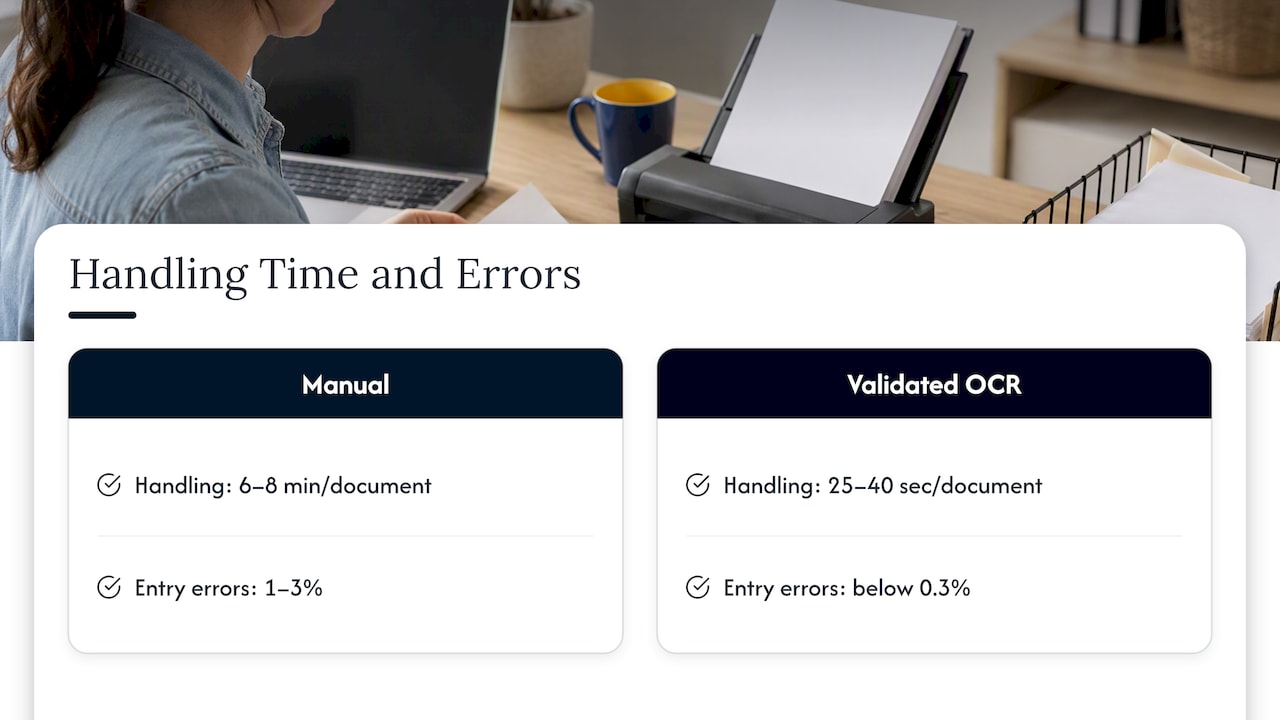
According to the OCR automation guide from StackForPros, structured validation can cut invoice handling from 6 to 8 minutes by hand to 25 to 40 seconds per document. For 80 invoices a day, that is about 7.5 hours of labor shrinking to under an hour of exception handling. Treat those as one source’s figures, not a promise. Your results depend on document quality and how consistent your vendors’ formats are.
Error rates tell the more important story. The same source puts manual data entry error rates at roughly 1 to 3 percent, and below 0.3 percent with validated OCR. For a team processing 500 invoices a month, 1 to 3 percent means 5 to 15 wrong entries, each taking 20 to 45 minutes to untangle. That is the hidden cost: duplicate payments, vendor disputes and month-end corrections.
If accounts payable is your biggest paper stream, our accounts payable automation ROI guide walks through how finance teams build the business case.
What it costs
Pricing varies widely, so ask every vendor to state it in the same units. A 2025 cost breakdown reports that IDP platforms typically charge $0.01 to $0.05 per page or $0.10 to $0.50 per document. It also reports one-time implementation costs of $15,000 to $100,000 where deep ERP integration is involved.
Two takeaways for a small business:
- Per-document pricing favors low or uneven volume. Compare it with a flat subscription once you pass a few thousand documents a month.
- Integration is the budget swing. Connecting to a modern cloud accounting tool is far cheaper than wiring into a heavily customized system. Ask about integration before you ask about OCR accuracy.
For scale, a 2020 logistics case study compared manual extraction at about 231,504 euros a year, for a firm handling 4,000 orders a month, with robotic process automation at about 78,000 euros a year. That is a large company in a different market, so use it as an illustration of how the math can work, not as a forecast for your shop.
Some teams also look at RPA, software robots that move data between systems, as the layer that does the write-back. This piece on document request automation shows how automated document handling shortens a document-heavy workflow in practice.
Where first projects go wrong
- Automating a messy process. If three people file invoices three ways, automation will copy the confusion. Agree on one process first.
- Skipping the index. Before you scan anything, decide what metadata each document carries, such as vendor, date, document type and customer number. Without it you end up searching through digital chaos.
- Treating the exception queue as an afterthought. Some documents will always need a human. Name who reviews them and how fast.
- Forgetting security. This is the one most owners miss, and it is covered next.
Securing what you capture
Once paper becomes files, those files become a target. Security guidance for small businesses says scanning is not a one-time project. Digital files need backups, role-based access controls and monthly audits of access logs. Without them, data loss or compliance violations can cost more than the original implementation.
In practice, that means:
- Give each role access only to the document types it needs. Payroll files should not sit in a folder everyone can open.
- Turn on multi-factor authentication for every system that stores or receives captured documents.
- Back up the repository and test a restore.
- Review who opened what each month.
- Don’t forget the device that does the scanning. Office copiers store images on internal drives, and our guide on how to secure copier hard drives covers the three steps to take.
If you handle financial, health or customer records, ask your IT provider or attorney which rules apply to your business before you choose where documents are stored. Our cybersecurity services are built around this kind of review, and our Ohio cybersecurity plan guide explains where to start.
Our perspective
We run an outsourced IT department for small and mid-sized businesses in Ohio and Michigan, and we also sell and support copiers and managed print. That puts us where paper turns into data: at the scanner and the network behind it.
Here is what we see. Owners tend to start by shopping for software. The better starting point is the device and the workflow. Many multifunction copiers already scan to email, folders and cloud storage, and some include OCR. Our article on OCR in Xerox copiers shows what that looks like in an everyday office. If the scanner is set up well, with 300 DPI defaults, named scan destinations and locked-down access, you have done much of the ingestion and pre-processing work already.
The second thing we see is that capture projects fail at the handoff between teams. Finance wants the data, operations owns the paper, and nobody owns the network and security settings. A single provider covering IT, security and print removes that gap. Our help desk is local, based in Ohio and USA-staffed, with an average response time under 12 minutes. When a scan-to-folder job stops working at month-end, that speed matters more than any feature list.
Our advice: pick one document type, fix the process, automate it, measure it, and only then expand.
— Jeffrey
A six-step pilot you can run this quarter
A pilot keeps risk low and gives you numbers for the next decision. Our guide to piloting automated document workflows covers it in more detail. In short:
- Choose one document type. Invoices are the usual pick because the volume is steady and the fields are predictable.
- Baseline it. Record minutes per document, error rate and how long approvals take.
- Standardize intake. One mailbox, one scanner profile, 300 DPI, split by document.
- Define validation rules. Match totals, vendors and PO numbers, and decide what goes to review.
- Run it for 30 to 60 days alongside the old process if you can.
- Compare and decide. Look at time saved, errors avoided and exceptions per hundred documents.
If a more advanced bot is ever needed to move data across systems, our comparison of two popular automation platforms for SMBs helps you judge whether that step is worth it.
How we can help
Capture works best when the scanners, network, security and business systems are managed together. Mavericks Office Solutions provides managed IT services with 24/7 monitoring, managed print services for copiers and printers, and robotics and workplace automation for businesses ready to go further. If you want a practical starting plan for one document type, contact us through our site and we will talk it through.
FAQ
What is the difference between document capture and intelligent document processing?
Document capture gets a document into a digital system, usually by scanning or upload, and often includes OCR. Intelligent document processing adds machine learning so the software can also classify documents and read varied layouts. For a small business with predictable documents, basic capture with good validation rules is often enough to start.
Can automation sort documents by type on its own?
Yes. Classification software reads a document and assigns it a type, such as invoice, contract or purchase order, then routes it. It works best with a short list of document types and clear examples. Expect a small share to land in a review queue, and assign someone to clear it.
What scan resolution should I use?
Use 300 DPI as your default. Accuracy falls off sharply below 150 DPI, and 300 DPI is the practical minimum for dependable automated reading. Higher settings mostly add file size without much benefit for typical office documents.
Is a scanned file safer than paper?
Only if you protect it. Digital files can be copied and shared far faster than paper, so you need backups, role-based access and regular log reviews. If your files hold sensitive customer or employee data, ask your IT provider to review access before you go live.
Sources
- Document Processing Costs: The Full 2025 Breakdown by Document Type, Papirus
- Robotic Process Automation for Document Processing: A Case Study of a Logistics Service Provider
- How to Set Up Document Scanning for Small Business, Scannmore
- What is Intelligent Document Processing, AWS
- Document Request Automation, 1SMTG blog