

Follow me printing sends every print job to one virtual queue instead of a specific machine, holding it there until you badge in, enter a PIN, or scan a code at any enabled printer. That single design choice solves two problems at once: your document stays private until you’re standing at the device, and you can walk up to whichever printer is closest and release it there. Campuses run on this system because it cuts waste, protects sensitive paperwork, and lets one driver work across dozens of machines.
TL;DR:
- Follow me printing stores print jobs in a central queue and requires user authentication at any device to release the document, enhancing privacy and flexibility.
- Most systems retain jobs for 24 to 72 hours before automatic deletion to minimize storage use and prevent privacy breaches.
- Authentication methods include RFID badge tap, PIN or password, mobile app scan, or QR code, with support for delegation in administrative contexts.
- Setting up involves installing specific drivers or apps on devices, ensuring selection of the correct queue, and verifying network or VPN connections to avoid release issues.
- Deployment success depends on clear onboarding, security features like encryption and audit logs, and ongoing support from managed print providers with fast US-based help desks.
Table of Contents
- What Is Follow Me Printing, Exactly?
- How Does Follow Me Printing Work?
- What Are the Main Authentication Methods?
- How Do You Set Up Follow Me Printing on Your Device?
- Where Is It Used, and What Are the Real Benefits?
- Quick Fixes When a Print Job Doesn’t Show Up
- What Should a Campus Print Setup Actually Include?
- What People Get Wrong About Rolling This Out
- Get Follow Me Printing Set Up Right the First Time
- Where to Learn More
- Sources
- FAQ
What Is Follow Me Printing, Exactly?
Follow me printing, sometimes called Find-Me printing, is a system where your print job doesn’t go to one physical printer. It lands in a central queue, cloud-based or on a local server, waiting there until you authenticate at any device connected to that network.
Campus IT teams often describe it in almost identical terms: send the job once, then release it wherever you happen to be standing. Ohio State’s UniPrint program frames it exactly this way, with students and staff releasing jobs using a campus ID at any registered printer or copier across the university.
The mechanics are consistent everywhere it’s deployed. You send the file from your laptop, tablet, or phone. The system stores it, holds it, and requires proof it’s actually you before spitting out a single page. Vendor documentation for Find-Me printing lists this as the core mechanism behind the model, along with the security and waste-reduction benefits that follow from it.
Here’s the distinction worth remembering: this isn’t the same as printer sharing, where multiple people simply have access to the same device. Follow me printing decouples the job from any single machine entirely. The queue is the destination, not the printer. That’s what makes roaming access, confidentiality, and consistent driver management possible campus-wide.
How Does Follow Me Printing Work?
Your document doesn’t travel straight to a printer. It goes to a virtual queue, sometimes hosted on a campus server, sometimes in the cloud, where it waits for you to claim it. That queue is the entire point: it decouples “sending” a job from “collecting” it.
Once the job lands in the queue, nothing happens until you show up. Walk to any release-enabled printer, authenticate, and the system pulls your specific job and prints it there. If that printer is jammed, out of toner, or offline, most platforms will let you walk to a different device and release the same job without resending it, demonstrating how mobile project management benefits contractors managing multiple devices across locations as explained in The Build: Streamline Purchasing, Projects & Profits. That flexibility is part of why the model spread so fast across large organizations with multiple print rooms.
Uncollected jobs don’t sit in that queue indefinitely. Most campus systems enforce a retention window between 24 and 72 hours, after which the file deletes automatically. UW-Stevens Point’s help desk documentation puts that ceiling at 72 hours for its FollowMe queue, a figure that’s become close to a de facto standard across higher education. Servers enforce this window for a practical reason: unclaimed jobs eat up storage, and a forgotten transcript or grade sheet sitting in a queue for weeks is a real privacy exposure.
If a device goes down mid-release, the system typically reroutes you rather than losing the job. You’ll see an error, pick another printer from the list, and the same file releases there instead. Nothing is lost until the retention window actually expires.

What Are the Main Authentication Methods?
You’ll usually meet one of four release methods at the printer, and most campuses support more than one so you’re never stuck.
Card or badge tap is the most common. Your student or employee ID carries an RFID or NFC chip, and you tap it against a reader mounted on or near the printer. Pairing usually happens once, through a campus portal or IT office, and then the badge just works everywhere on the network.
PIN and password release functions as a backup or primary method depending on the campus. You type a short PIN or your standard login credentials directly on the printer’s touchscreen.
Mobile app or QR code release has grown fastest with cloud queues. You scan a code with your phone or approve the job through an app, which matters most for people who forgot their badge or work across multiple sites. Ricoh’s glossary on secured print release lists these same three methods as the industry standard set.
Some systems also support delegation, letting an assistant or staff member release a document on someone else’s behalf under controlled permissions, which matters in administrative offices more than classrooms.
How Do You Set Up Follow Me Printing on Your Device?
Getting this running takes a few minutes on most platforms, and campus IT usually provides the exact installer link for your device type. Here’s the general path:
- Windows: Download the follow-me or universal print queue driver from your campus IT portal, install it, and select it as your default printer for jobs you want held for release rather than sent directly.
- macOS: Add the printer through System Settings using the network address or installer your IT department provides, then confirm the queue name matches the follow-me system rather than a specific device.
- Chromebooks: Most campuses use a cloud print extension or direct App Store link rather than a traditional driver, since Chromebooks don’t support standard print drivers the way Windows and macOS do.
- iOS and Android: Install the mobility print app or vendor-specific app your campus recommends, log in with your campus credentials, and send jobs directly from your phone’s share menu.
If a job never leaves your device, check three things first: confirm you actually selected the follow-me queue and not a local printer, check that you’re on the correct campus network or VPN, and make sure a driver mismatch or group policy restriction isn’t silently blocking the send. University of Michigan’s IT services page walks through platform-specific installers if your campus follows a similar setup.
When none of that resolves it, the fastest fix is contacting your campus help desk directly. Installer links, current retention policies, and network requirements change often enough that IT’s own documentation beats guessing.
Where Is It Used, and What Are the Real Benefits?
Libraries, computer labs, faculty offices, and exam centers are the heaviest users of this system, precisely because those spaces mix high print volume with documents nobody wants sitting exposed on an output tray.
The privacy angle matters most in exam centers and administrative offices, where a grade report or disciplinary letter left unattended is a real problem. Waste reduction is the second benefit: jobs people abandon or send twice no longer pile up physically, since nothing prints until someone claims it.
For IT departments, the operational payoff is just as real. One driver works across every enabled device, department cost tracking gets cleaner, and printers sit idle less often because usage isn’t tied to whichever machine happens to be nearest a given office.
Quick Fixes When a Print Job Doesn’t Show Up
Most release problems trace back to one of three causes, and you can usually diagnose them yourself before calling anyone.
- Confirm you sent the job to the correct follow-me queue, not a local or default printer.
- Check whether the retention window already expired. A job sent two days ago in a 24-hour system is simply gone, and that policy exists specifically to limit exposure from abandoned print jobs.
- If your badge won’t authenticate, try re-pairing it at the IT office or switch to PIN or app release as a backup.
- If the printer throws an error at release, most systems auto-retry or let you reroute the same job to another device without resending it.
Pro Tip: Before calling IT, note your username, the exact job name, and the timestamp you sent it. That single detail cuts most troubleshooting calls in half, because support staff can trace the job in the queue log immediately instead of guessing.
What Should a Campus Print Setup Actually Include?
A reliable deployment rests on three components: a print server or cloud queue, card readers or embedded apps on each device, and a real onboarding process for new users. Security features matter just as much as convenience ones. Look for encryption in transit, an enforced auto-delete window, and per-user audit logging so IT can trace exactly who released what and when.
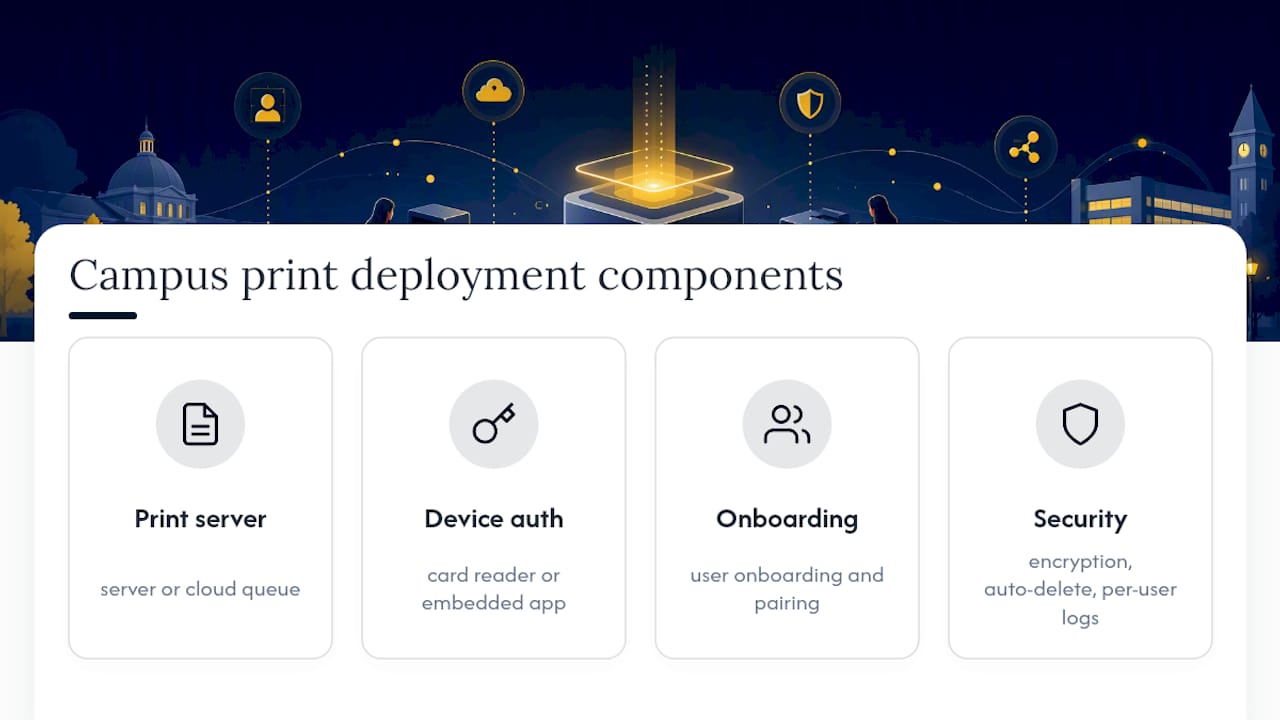
Before signing with any managed-print partner, confirm they cover onboarding, card pairing, and ongoing monitoring, not just hardware installation.
What People Get Wrong About Rolling This Out
The technology rarely fails. Adoption does, usually because nobody explained retention windows or authentication clearly before launch. Simple signage and pairing instructions cut help-desk calls substantially during rollout, more than any technical fix does. Secure release should be mandatory, not optional, for exam materials and HR documents.
— Jeffrey
Get Follow Me Printing Set Up Right the First Time
Rolling out secure print release across a campus or office involves more moving parts than most IT teams expect: card readers, driver deployment, retention policies, and a help desk that can actually answer questions when badge pairing goes wrong. A managed print services provider can handle that entire process end to end, from initial onboarding and card pairing through ongoing monitoring, so your printers stay reliable without your internal team fielding every ticket.

What sets this apart from handling it in-house is the response time. Some providers run a local, USA-based help desk with an average response under 12 minutes, so a failed badge pairing or a queue that won’t release doesn’t sit unanswered for a day while someone waits on an offshore ticket. That matters most during the first few weeks after rollout, when print volume and confusion both peak. If your organization is evaluating a secure print deployment or already running one that needs better support, visit the managed print services page to talk through onboarding, hardware compatibility, and monitoring options.
Where to Learn More
For platform-specific installers or campus policy details, start with your own IT knowledge base. UniPrint’s student guide and PaperCut’s Find-Me printing overview are both solid vendor-neutral references worth bookmarking.
Sources
- Follow Me Printing | UniPrint – The Ohio State University
- Print to a FollowMe Print Queue While On Campus
- Find-Me Printing – Follow Me Printing | PaperCut
FAQ
What Is Follow Me Printing?
Follow me printing sends your print job to a shared virtual queue instead of one specific printer, holding it until you authenticate at any enabled device to release it.
What Does Follow Me Printing Mean for Retention and Deletion?
It means your job stays in the queue only for a limited window, typically 24 to 72 hours, before the system deletes it automatically to protect confidential documents and free up storage.
How Do I Set Up Follow Me Printing?
Install the follow-me or universal print queue driver from your IT department’s portal on Windows or macOS, add the cloud printer on Chromebooks, or install the mobility app on iOS and Android, then select that queue as your printer when sending a job.
How Do I Download the Follow Me Print App or Driver?
Your campus or workplace IT department provides the specific installer or app link, usually through an internal portal, since the exact download depends on which print management platform your organization runs.
Can I Release a Job at Any Printer on the Network?
Yes, that’s the core feature: once your job is in the queue, you can walk up to any release-enabled printer on the network and authenticate to print it there.