

A strong password policy requires a minimum of 12–15 characters, mandatory MFA, breached-password screening, lockout controls, and rotation only on confirmed compromise — not on a calendar schedule.
Quick-reference checklist for your policy document:
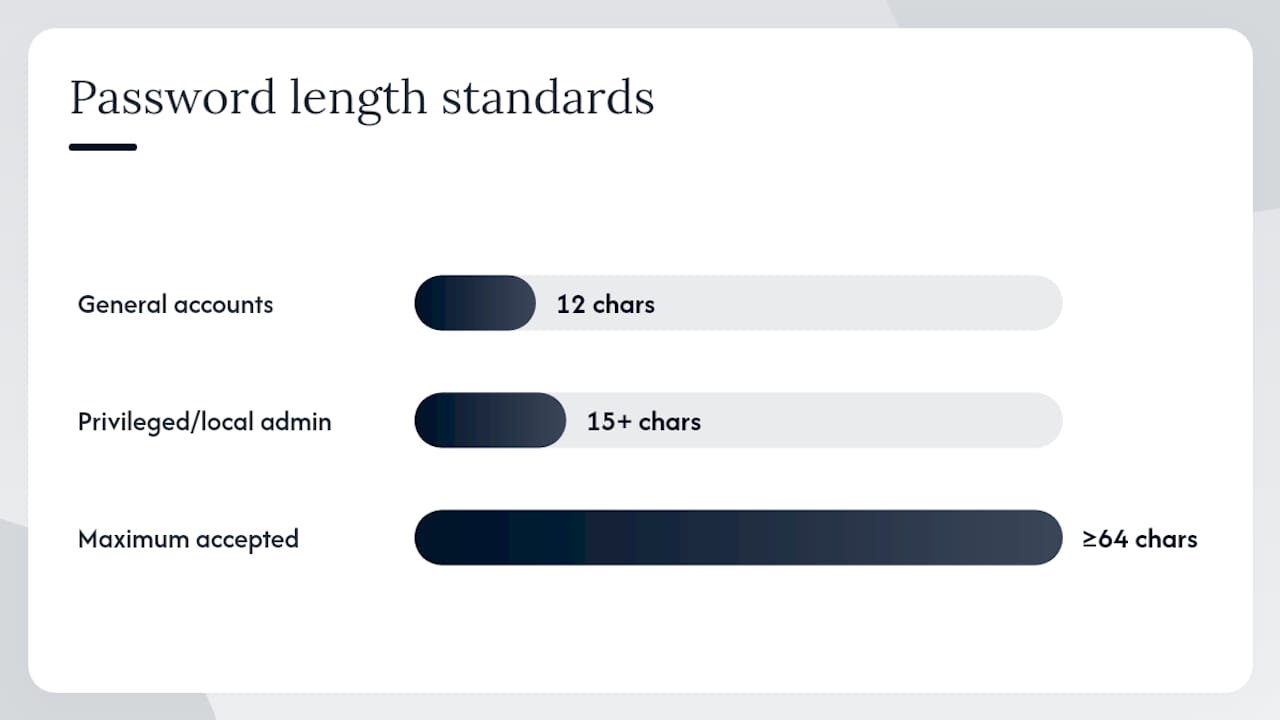
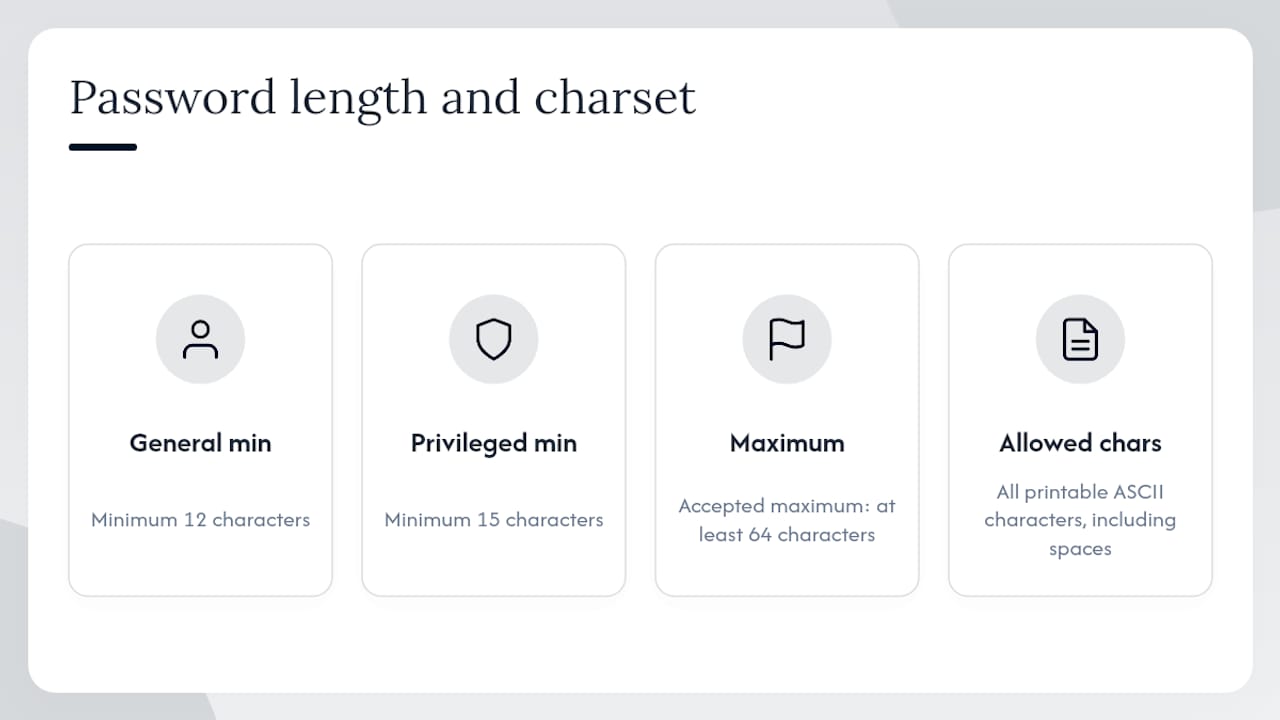
- Minimum length: 12 characters for general accounts; 15+ for privileged and local admin accounts
- Maximum length: Accept at least 64 characters; never silently truncate
- Blocklist: Deny common, dictionary, and known-breached passwords at creation and reset
- MFA: Required for all user accounts; mandatory for admin and privileged roles
- Password history: Remember at least 10 previous passwords to prevent reuse
- Minimum password age: 1–3 days to block rotate-and-reuse workarounds
- Lockout / rate limiting: Progressive delays after failed attempts; avoid indefinite lockout on user accounts
- Breached-password screening: Check against a breached-credential API (such as Have I Been Pwned) at every creation and reset event
- Storage: Salted, iterative hashing only — never plaintext or reversible encryption
- Rotation trigger: Only on confirmed compromise, credential exposure, or privileged account takeover — not on a fixed schedule
Long passphrases (three or more words, spaces permitted) satisfy length requirements and are easier for users to remember. Require them as an acceptable format in your policy language.
Key Takeaways
Current password security guidance from NIST, CISA, and Microsoft converges on four non-negotiable controls: a minimum length of 12–15 characters, mandatory MFA, breached-password screening at creation and reset, and rotation only on confirmed compromise — never on a calendar schedule.
| Point | Details |
|---|---|
| Length over complexity | Set a 12-character minimum for general accounts and 15+ for privileged roles; accept up to 64 characters. |
| Drop forced rotation | Require password changes only on confirmed compromise, credential exposure, or privileged account takeover. |
| MFA is the primary control | Enforce MFA registration at first login; require phishing-resistant methods for admin accounts. |
| Breached-password screening | Check every new password against a breached-credential API such as Have I Been Pwned at creation and reset. |
| Mavericks Office Solutions | Provides full policy implementation, MFA rollout, and 24/7 monitoring for SMBs with a sub-12-minute help desk response. |
Table of Contents
- What do NIST, CISA, and Microsoft actually recommend?
- Concrete password policy settings you can implement today
- How to enforce the policy technically
- Copy-paste policy language and configuration examples
- Why users see “password does not meet password policy requirements”
- When should you require a password rotation?
- Designing layered authentication: MFA and passwordless options
- How to measure whether your password policy is working
- What every IT admin should do this week
- The part most password policies get wrong
- Mavericks Office Solutions handles the implementation so you don’t have to
- Sources
What do NIST, CISA, and Microsoft actually recommend?
These three authorities agree on more than most admins realize, and the points of agreement are the ones that matter most.
Where they align:
- Length beats complexity. All three prioritize minimum character counts and passphrase support over composition rules (forced uppercase, symbols, digits).
- Blocklists are non-negotiable. Screening against common and breached passwords is a baseline control, not an optional enhancement.
- MFA is the primary defense. CISA explicitly recommends pairing strong passwords with multifactor authentication as the first line of defense for small and medium businesses.
- Avoid forced periodic rotation. NIST, Microsoft, and the UK’s NCSC all discourage calendar-based expiration.
Where they differ slightly:
NIST SP 800-63B sets the floor at 8 characters for memorized secrets but strongly encourages longer passphrases and allows up to at least 64 characters. Microsoft’s guidance for Microsoft 365 recommends a 14-character minimum and sets cloud-account expiration to “never expire” by default. Canada’s government guidance recommends at least 12 characters generally and suggests 15 characters in Windows environments.
For US-based organizations, the practical reconciliation is straightforward: set your minimum at 12–14 characters for general accounts, 15+ for privileged roles, and treat 64 characters as your accepted maximum.
Key callout: NIST SP 800-63B explicitly prohibits silent truncation. If your identity provider or application silently cuts a 70-character passphrase to 20 characters without telling the user, you have a policy violation and a security gap. Audit your platforms for this behavior before publishing your policy.
Concrete password policy settings you can implement today
These are the specific values to configure, with the rationale behind each one.
Length and character support
Set your general-account minimum to 12 characters, your privileged and local admin accounts to 15 characters, and your accepted maximum to at least 64 characters. Allow all printable ASCII characters, including spaces. Passphrases like correct horse battery staple meet length requirements and are far more resistant to brute force than P@ssw0rd1!.
OWASP’s authentication guidance specifically recommends allowing whitespace and supporting paste in password fields — both features that make passphrases practical for users and reduce help desk load.
Password history and minimum age
- History: Remember the last 10 passwords. This prevents users from cycling through a short list to return to a favorite.
- Minimum age: Set to 1–3 days. Without a minimum age, a user can change their password 10 times in a row and land back on the original, defeating the history control entirely.
Lockout and rate limiting
Indefinite account lockout on user accounts creates a denial-of-service risk — an attacker can lock out every account in your directory with a few targeted attempts. Use progressive delays instead: a short delay after 3–5 failed attempts, escalating with each subsequent failure. Reserve hard lockout for privileged accounts where the risk of brute force outweighs the availability concern. Always provide a self-service reset path so locked users do not flood the help desk.
Breached-password screening
Check every new password and every reset against a breached-credential database. The Have I Been Pwned (HIBP) API uses a k-anonymity model that sends only the first 5 characters of a SHA-1 hash, so the full password never leaves your environment. NIST SP 800-171-derived controls explicitly require maintaining a list of compromised passwords and verifying new passwords against it.
Legacy system exceptions
Some older applications cannot meet a 12-character minimum or do not support special characters. Document these exceptions formally:
- Name the system and the exception granted
- Specify compensating controls (network segmentation, additional logging, MFA at the gateway)
- Set a remediation target date
- Review exceptions quarterly
How to enforce the policy technically
Password storage
Never store passwords in plaintext or with reversible encryption. Use a salted, iterative hashing algorithm. Argon2id is the current recommended choice for new systems. Where platform constraints require an older algorithm, bcrypt or PBKDF2 are acceptable with appropriately tuned work factors. The Canada.ca password guidance recommends Argon2 for new implementations and notes that PBKDF2 or bcrypt remain acceptable where legacy compliance patterns require them, provided work factors are reviewed periodically.
Pro Tip: When tuning bcrypt work factors, target a hash time of 100–300ms on your authentication server. Too fast means weak protection; too slow creates a denial-of-service vector during high-volume login events.
Breached-password API integration
Operationally, breached-password checks work best server-side during password change and account creation events. For performance and privacy, consider caching a Bloom filter locally and syncing it nightly from the HIBP dataset rather than making a live API call on every authentication attempt. This approach keeps sensitive hash data off the wire during routine logins while still blocking known-breached credentials at the point of creation.
Composition rules — forcing a capital letter, a digit, and a symbol — often produce predictable patterns like
Password1!rather than genuinely strong credentials. OWASP’s authentication cheat sheet identifies blocklists and length requirements as higher-value controls than composition mandates, and the research behind NIST SP 800-63B reached the same conclusion. Drop the composition requirement; keep the blocklist and the length floor.
MFA enrollment and rollout
Require MFA registration at first login. Do not make it optional and then try to enforce it later — the backlog of non-enrolled accounts becomes a persistent risk. A practical rollout sequence:
- Enable MFA for all admin and privileged accounts immediately
- Enforce MFA for all new accounts at creation
- Set a 30-day enrollment window for existing users with daily reminders
- Block access for non-enrolled accounts after the window closes
For authenticator app selection, TOTP-based apps (such as Microsoft Authenticator or Google Authenticator) are a solid baseline. FIDO2 hardware keys offer stronger phishing resistance for high-value accounts.
SSO, OIDC, and SAML integration
When you federate authentication through an SSO provider, per-application password policies become largely irrelevant — the identity provider (IdP) owns the credential. This is a feature, not a limitation. Centralize your password policy in the IdP, enforce MFA there, and let downstream applications trust the IdP’s assertion. The practical implication: audit every application to confirm it actually routes through your IdP rather than maintaining a local credential store in parallel.
For business password manager rollout, prioritize service accounts and shared credentials first. These are the accounts most likely to have weak, static passwords that predate your current policy.
Service and machine accounts should use managed secrets with automated rotation through a vault or managed identity service rather than human-memorized passwords. Where human-facing access to service accounts is unavoidable, apply stricter length requirements and breached-password checks, and log every use.
Copy-paste policy language and configuration examples
1. Organization password policy statement
Password Policy — [Organization Name]
All user accounts must use a password or passphrase of at least 12 characters (15 characters for privileged accounts). Passwords must not appear on the organization’s blocked-credential list or in known breached-password databases. Passwords may include any printable character, including spaces. Periodic password changes are not required; passwords must be changed immediately upon confirmed or suspected compromise. Multifactor authentication is required for all accounts. Password reuse is prohibited for the previous 10 passwords.
2. Admin configuration summary (GPO / Entra-style)
Minimum password length: 12 (general); 15 (privileged/local admin)
Maximum password age: Not set (never expires) — exception: reset on compromise
Minimum password age: 1 day
Password history: 10
Account lockout threshold: 5 attempts (progressive delay); hard lockout for privileged accounts
Complexity requirement: Disabled — replaced by blocklist enforcement and length minimum
Breached-password check: Enabled at creation and reset
MFA: Required for all accounts; enforced at IdP
For Microsoft 365 tenants, the Microsoft 365 admin center exposes expiration settings under Settings > Org settings > Security & privacy > Password expiration policy. Set passwords to never expire for cloud-only accounts. Hybrid accounts follow on-premises AD policy, so align your AD fine-grained password policy (FGPP) objects with the values above.
3. End-user guidance snippet
Your password or passphrase:
Use at least 12 characters. A phrase likeblue-sky morning coffeeis stronger thanTr0ub4dor&3. Spaces are allowed. You will not be asked to change your password on a schedule — only if your account is compromised. Use the company-approved password manager to generate and store unique credentials for every system. Contact the help desk if you receive an unexpected prompt to reset your password.
Documenting exceptions
For any system that cannot meet the standard policy, create a formal exception record that includes: the system name, the specific requirement that cannot be met, the compensating controls in place, the account owner, and a review date no more than 90 days out. Store exception records in your IT governance system and review them at each quarterly security review.
Why users see “password does not meet password policy requirements”
This error is one of the most common help desk tickets, and it usually has one of six causes. Work through them in order.
- Blocklist hit. The chosen password matches a common or breached credential. Ask the user to choose a longer, more unique passphrase. Check your blocklist configuration to confirm it is actively enforced.
- Silent truncation. The application is silently cutting the password at a character limit the user cannot see. Test by setting a password of exactly the maximum length your policy allows, then one character longer. If the longer one fails, you have a truncation issue at the application layer.
- Disallowed characters. Some legacy applications reject spaces, certain symbols, or non-ASCII characters. Check the application’s character whitelist and document the limitation as a policy exception.
- Password history conflict. The user is attempting to reuse a recent password. Confirm the history count in your directory policy and communicate the restriction clearly in the error message.
- Cached or stale credentials. On Windows domain-joined machines, cached credentials can conflict with a recently changed policy. Have the user sign out completely, clear cached credentials via Credential Manager, and sign back in on a network-connected session.
- Sync or federation lag. In hybrid environments, a password change in Entra ID may not have propagated to on-premises AD (or vice versa) within the sync window. Check the Microsoft 365 admin center sync status and confirm the Azure AD Connect sync cycle has completed.
Admin command references:
- AD fine-grained password policy (PowerShell):
Get-ADFineGrainedPasswordPolicy -Filter *to list all FGPPs;Get-ADUserResultantPasswordPolicy -Identity usernameto check the effective policy for a specific user. - Entra ID (Azure AD): Review password protection settings under Security > Authentication methods > Password protection in the Entra admin center.
- Force AD sync:
Start-ADSyncSyncCycle -PolicyType Deltaon the Azure AD Connect server.
When you push a policy change, communicate it proactively. A brief email explaining what changed, why, and what users need to do next cuts help desk volume significantly.
When should you require a password rotation?
The short answer: when something has gone wrong, not when the calendar says so.
NIST SP 800-63B advises against mandatory periodic rotation and recommends relying on evidence-driven triggers instead. The UK’s NCSC makes the same point more bluntly: forcing regular expiry is counterproductive, producing predictable patterns like Summer2025! → Fall2025! → Winter2026! rather than genuinely new credentials.
When a trigger fires, the reset process should include: forcing a password change at next login, invalidating all active sessions, reviewing recent access logs for the account, and notifying the account owner with clear instructions.
Handling legacy systems that require rotation: Some compliance frameworks (older PCI DSS interpretations, certain healthcare IT policies) still mandate periodic rotation. Where you cannot eliminate the requirement, apply compensating controls: enforce a minimum password age to prevent cycling, require a longer minimum length than your standard policy, and log all rotation events for audit purposes. Document the framework requirement that mandates rotation so your team understands it is a compliance constraint, not a security best practice.
Designing layered authentication: MFA and passwordless options
MFA is not optional. CISA’s guidance for small and medium businesses treats MFA as a primary control alongside strong passwords, not a secondary enhancement. For privileged accounts, MFA is the single highest-return security investment you can make.
MFA baseline requirements:
- Require MFA registration at first login for every new account
- Enforce MFA for all admin, privileged, and service-desk accounts before rolling out to general users
- Disable legacy authentication protocols (Basic Auth, NTLM where possible) that bypass MFA
- Use phishing-resistant MFA (FIDO2 keys, certificate-based auth) for accounts with access to sensitive data or administrative consoles
Evaluating passwordless options:
Passwordless authentication — FIDO2 passkeys, Windows Hello for Business, device-bound certificates — eliminates the credential entirely rather than protecting it. For high-risk or high-volume sign-in scenarios, passwordless is worth evaluating seriously. Common enterprise patterns include:
- FIDO2 hardware keys (YubiKey, Feitian) for admin accounts and remote workers
- Passkeys (device-bound, synced via platform) for general user accounts on managed devices
- Windows Hello for Business for domain-joined Windows endpoints
Rollout phasing for organizations with legacy apps:
Legacy applications that do not support modern authentication protocols (OIDC, SAML) cannot participate in MFA or passwordless flows directly. The practical path is to front them with an application proxy or SSO gateway that handles authentication and passes a trusted assertion to the legacy app. This lets you enforce MFA at the perimeter without modifying the legacy application. Pair this with physical access controls — office security installations that restrict physical access to legacy system terminals add a meaningful compensating layer where network-level controls fall short.
How to measure whether your password policy is working
A policy without metrics is a policy you cannot improve. These KPIs give you a clear picture of both security posture and user friction.
Suggested KPIs to track monthly:
- Percentage of accounts with MFA enrolled (target: 100% for privileged; 95%+ for general)
- Number of blocked breached-password attempts at creation and reset events
- Number of forced resets triggered by confirmed compromise or breach detection
- Lockout incidents per week (a spike signals either a brute-force attempt or a policy misconfiguration)
- Help desk password reset volume (a sustained increase after a policy change signals a communication or usability problem)
Logging and alerting:
Set alerts for: authentication failure rates above your baseline (more than 5–10 per account per hour), geographic or velocity anomalies (a login from a new country within minutes of a domestic login), and breached-password API hits. These three signals catch the majority of credential-based attacks before they escalate. Store authentication logs for at least 90 days — 12 months for privileged accounts — to support incident response and compliance audits.
Auth failure trends are more useful than raw counts. A sudden spike in failures across many accounts on a Monday morning usually means a policy change was not communicated. A sustained low-level increase on a single account is a brute-force signal. Knowing the difference saves hours of investigation.
For compliance reporting, export MFA enrollment rates and breached-password block counts monthly. These two figures demonstrate active policy enforcement to auditors and cyber insurance underwriters more concisely than any policy document alone.
What every IT admin should do this week
Five actions, prioritized by impact:
- Enable MFA for all admin accounts today. This is the single highest-return action. CISA’s guidance treats MFA as a primary control, and privileged accounts without it are your highest-risk exposure.
- Enable breached-password screening at creation and reset. Connect to the Have I Been Pwned API or configure Entra ID Password Protection. This blocks the most common credential-stuffing vectors immediately.
- Set minimum password length to at least 12–14 characters. Update your AD fine-grained password policy and your IdP settings. Align with Microsoft’s 14-character recommendation for M365 tenants.
- Publish the policy snippets from this guide to your staff. Users who understand the “why” behind a policy comply more consistently. Send the end-user guidance snippet above with a brief explanation of what changed.
- Audit legacy systems for policy exceptions. Identify every system that cannot meet the standard policy, document the exception with compensating controls, and set a remediation date. This protects you in an audit and creates a roadmap for migration.
The part most password policies get wrong
Most organizations I work with have a password policy document. Very few have a password policy that is actually enforced at the technical layer. The document says “12 characters minimum,” but the Active Directory fine-grained policy still shows 8. The policy says “no periodic rotation,” but the M365 tenant still has a 90-day expiration rule left over from 2019. The policy says “MFA required,” but 30% of accounts have never enrolled.
The gap between the written policy and the enforced configuration is where breaches happen. Attackers do not read your policy document. They probe your actual settings.
The other pattern worth naming: organizations that implement strict composition rules (uppercase + digit + symbol) and then wonder why their users write passwords on sticky notes. OWASP’s authentication guidance is clear that blocklists and length floors are higher-value controls than composition mandates. Composition rules produce predictable workarounds. Length requirements and breached-password screening produce genuinely stronger credentials.
The practical fix is an annual configuration audit: pull your actual AD and IdP settings, compare them line by line against your written policy, and close every gap you find. That audit, done consistently, is worth more than any policy document.
Mavericks Office Solutions handles the implementation so you don’t have to
Getting the policy right on paper is one thing. Deploying MFA org-wide, configuring breached-password screening, auditing legacy exceptions, and keeping everything monitored and documented is a different project entirely — one that competes with every other IT priority on your list.
Mavericks Office Solutions acts as your outsourced IT department, handling the full implementation of password security and cybersecurity controls for small and medium businesses. With a US-based help desk averaging under 12 minutes response time, your team gets real answers fast — not a ticket queue.
What Mavericks delivers for password policy implementation:
- Policy templates aligned to NIST, CISA, and Microsoft guidance
- MFA rollout and enrollment management across your organization
- Breached-password screening configuration and ongoing monitoring
- Identity protection reporting for compliance and cyber insurance documentation
- 24/7 monitoring with alerts for authentication anomalies and lockout spikes
Ready to close the gap between your written policy and your actual configuration? Request an implementation review with Mavericks Office Solutions and get a clear picture of where your current settings stand.
Sources
These are the sources worth bookmarking for formal citations and ongoing policy updates.
NIST SP 800-63B (pages.nist.gov and nvlpubs.nist.gov) is the authoritative US standard for digital identity and authentication. Use it for formal policy citations, compliance justifications, and any dispute about whether a control is required or recommended.
CISA’s “Require Strong Passwords” page (cisa.gov) is the fastest reference for SMB-focused guidance and MFA requirements. It is written for decision-makers, not just technical staff, making it useful for board-level reporting.
Microsoft’s password policy recommendations (learn.microsoft.com) give you the specific admin steps for M365 and Entra ID tenants, including where to find each setting in the admin center.
OWASP Authentication Cheat Sheet (cheatsheetseries.owasp.org) is the developer-facing reference for implementing these controls in custom applications — particularly useful for breached-password API integration and password UX guidance.
- Pages
- Nvlpubs
- Learn
- Require Strong Passwords (CISA)
- Authentication – OWASP Cheat Sheet Series
- Problems forcing regular password expiry (NCSC blog)
- Canada
Recommended
- Best Business Password Manager for SMBs: 2026 Guide – Mavericks Office Solutions
- Privileged Access Management: 2026 Guide for Ohio IT Teams – Mavericks Office Solutions
- HIPAA Compliance IT for Michigan: Your 90-Day Action Plan – Mavericks Office Solutions
- Application Whitelisting: A Practical Guide for Michigan IT Teams – Mavericks Office Solutions